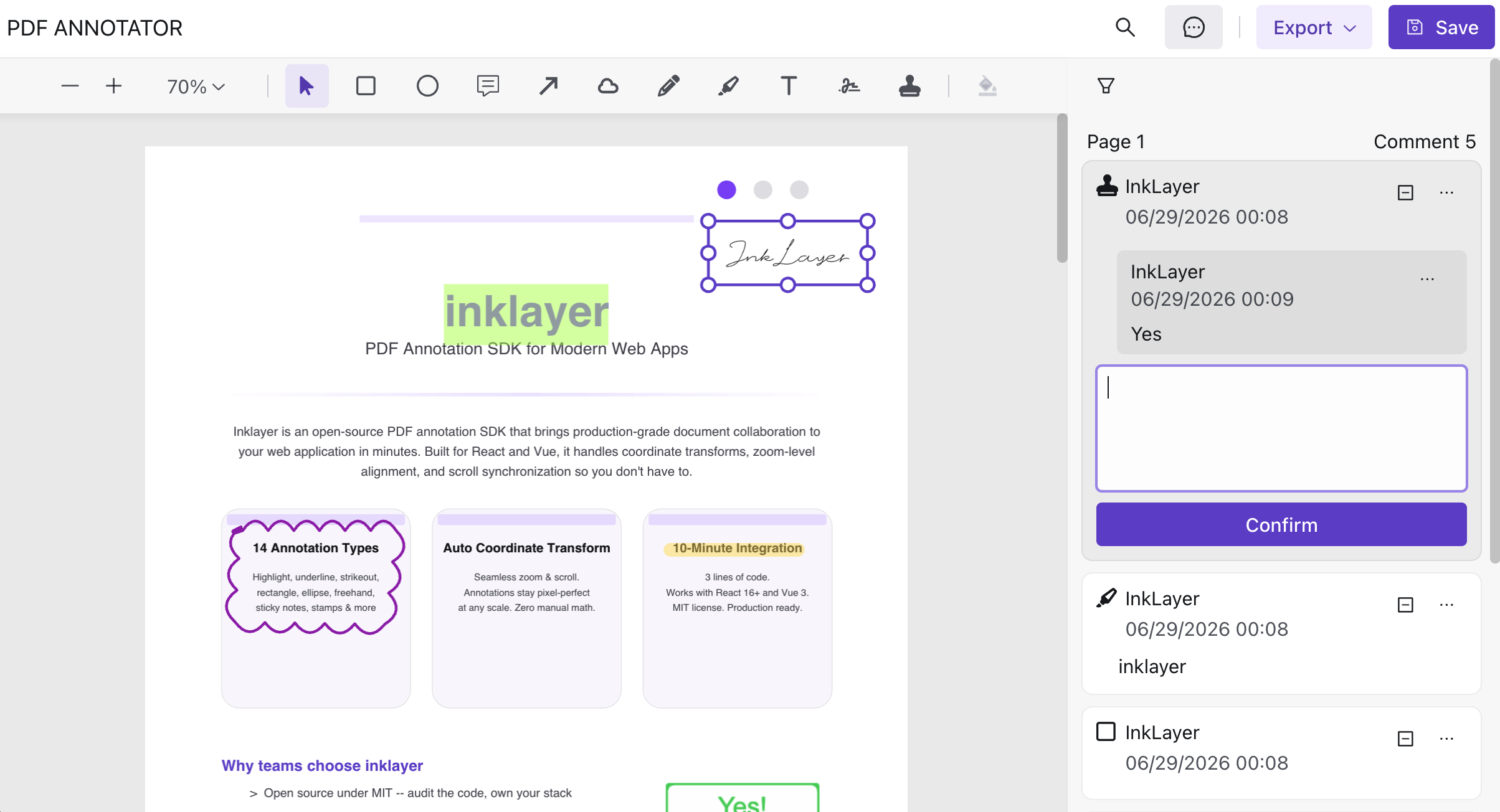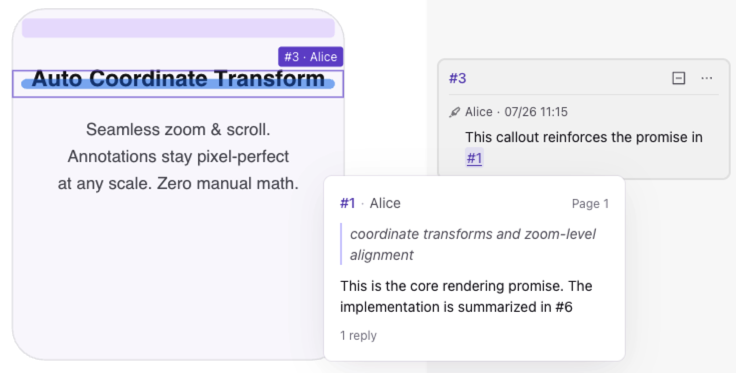


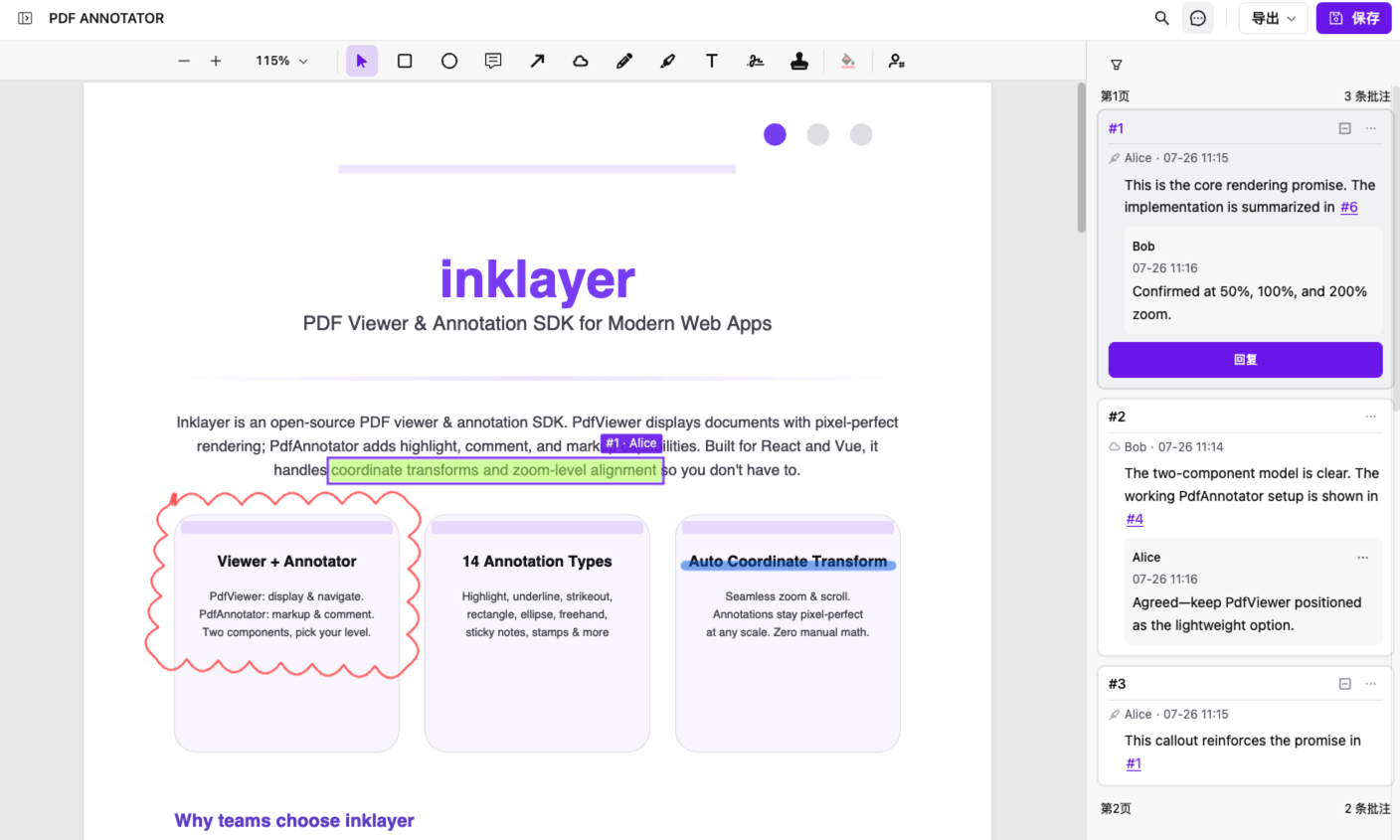
If you need a Vue 3 library for PDF rendering, signatures, and annotations, InkLayer provides installable PdfViewer and PdfAnnotator components. Built on PDF.js, it supports highlights, comments, freehand drawing, drawn or image signatures, stamps, annotation persistence, and annotated PDF export.
npm install inklayer-vue
| What you need | InkLayer capability |
|---|---|
| Render PDFs in Vue | PdfViewer with zoom, search, print, and page navigation |
| Add highlights, comments, and shapes | PdfAnnotator with a complete toolbar and 14 annotation types |
| Place a signature on a PDF | Draw, type, or upload a signature image |
| Save and restore annotations | Persist JSON data in your backend or local storage |
| Deliver review results | Export an annotated PDF or an Excel review log |
You can try PDF annotation online or open the Vue SDK documentation first.
Signature scope: InkLayer signatures are visual PDF annotations for drawing, typing, or uploading a signature image. They are not certificate-backed PAdES/PKCS#7 digital signatures. Certificate validation, trusted timestamps, and regulated signing workflows require a dedicated digital-signature service.
Why PDF.js alone is not a Vue PDF annotator
PDF.js handles PDF parsing and page rendering. When you use it directly in a Vue application, you still need to build:
- zoom, pagination, search, and thumbnail interfaces;
- text-selection highlights and PDF coordinate conversion;
- freehand, signature, stamp, and shape tools;
- selection, dragging, resizing, and deletion;
- comment replies, user ownership, and permissions;
- JSON persistence, restoration, and PDF export.
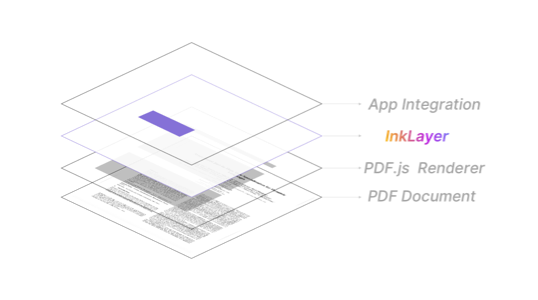
InkLayer adds Vue components, an annotation data model, and an interaction layer on top of PDF.js, so application code can work through props, events, and slots.
Step 1: Register the Vue plugin
Register the plugin in your application entry point:
import { createApp } from 'vue'
import { inklayerVuePlugin } from 'inklayer-vue'
import App from './App.vue'

const app = createApp(App)
app.use(inklayerVuePlugin)
app.mount('#app')
Then import the component styles:
<script setup lang="ts">
import { PdfAnnotator } from 'inklayer-vue'
import 'inklayer-vue/style'
</script>
Step 2: Render an annotatable PDF
The minimal example needs a PDF URL, the current user, and a container height:
<script setup lang="ts">
import { PdfAnnotator } from 'inklayer-vue'
import 'inklayer-vue/style'
</script>

<template>
  <PdfAnnotator
    url="https://inklayer.dev/inklayer-demo.pdf"
    locale="en-US"
    :user="{ id: 'reviewer-1', name: 'Alice' }"
    :layout-style="{ width: '100%', height: '100vh' }"
  />
</template>
PdfAnnotator includes the PDF Viewer, annotation toolbar, and annotation sidebar. Use PdfViewer instead when users only need to read the document.
Highlights, comments, and annotation events
Vue template events expose annotation changes:
<script setup lang="ts">
import type { Annotation } from 'inklayer-vue'

function handleAdded(annotation: Annotation) {
  console.log('Added:', annotation.id, annotation.kind)
}

function handleUpdated(annotation: Annotation) {
  console.log('Annotation or comment updated:', annotation.id)
}
</script>

<template>
  <PdfAnnotator
    url="/contract.pdf"
    :user="{ id: 'reviewer-1', name: 'Alice' }"
    @annotation-added="handleAdded"
    @annotation-updated="handleUpdated"
    @annotation-deleted="(id) => console.log('Deleted:', id)"
    @annotation-selected="(annotation, isClick) => console.log(annotation?.id, isClick)"
  />
</template>
Highlights, underlines, and strikeouts store text-selection quadrilaterals. Freehand annotations store path points. Comments and replies remain attached to their annotation. All geometry uses PDF user space so it stays aligned while zooming.
Drawn, typed, and image signatures
The signature tool supports Draw, Enter, and Upload. Configure its initial mode, accepted image formats, and fonts through defaultOptions.signature:
<script setup lang="ts">
const defaultOptions = {
  signature: {
    type: 'Draw' as const,
    accept: 'image/png,image/jpeg',
    maxSize: 2 * 1024 * 1024,
    defaultSignature: [],
    defaultFont: [
      { label: 'Handwriting', value: 'cursive', external: false },
    ],
  },
}
</script>

<template>
  <PdfAnnotator
    url="/contract.pdf"
    :user="{ id: 'signer-1', name: 'Signer' }"
    :default-options="defaultOptions"
  />
</template>
signature.typevalues are capitalized:'Draw' | 'Enter' | 'Upload'.
Save and restore annotations
The @save event returns the complete Annotation[]. Store it as JSON in your backend:
<script setup lang="ts">
import { ref } from 'vue'
import type { Annotation } from 'inklayer-vue'

const annotations = ref<Annotation[]>([])

async function handleSave(data: Annotation[]) {
  annotations.value = data
  await fetch('/api/documents/contract-1/annotations', {
    method: 'PUT',
    headers: { 'Content-Type': 'application/json' },
    body: JSON.stringify(data),
  })
}
</script>

<template>
  <PdfAnnotator
    url="/contract.pdf"
    :user="{ id: 'reviewer-1', name: 'Alice' }"
    :initial-annotations="annotations"
    @save="handleSave"
  />
</template>
Preserve annotation IDs, geometry, and author information when restoring data. Author IDs are also required when owner-only permissions decide who may edit or delete an annotation.
Export PDFs and review logs
Use the actions slot to connect save and export commands to your own toolbar:
<template>
  <PdfAnnotator url="/contract.pdf" :user="{ id: 'reviewer-1', name: 'Alice' }">
    <template #actions="{ onSave, exportToPdf, exportToExcel }">
      <button @click="onSave()">Save</button>
      <button @click="exportToPdf('reviewed-contract')">Export PDF</button>
      <button @click="exportToExcel('review-log')">Export Excel</button>
    </template>
  </PdfAnnotator>
</template>
- PDF export delivers a document with visible annotations;
- Excel export organizes authors, comments, and review status;
- your application JSON remains the source for continued editing and collaboration.
Choosing a Vue PDF annotation approach
| Approach | Best for | Main cost |
|---|---|---|
| Direct PDF.js integration | Complete control over rendering | Build the annotation UI, coordinates, and data layer yourself |
| Highlight-only component | Text highlights and simple comments | More work when signatures, shapes, or export are added |
| InkLayer | Viewing, annotation, signatures, comments, persistence, and export | Register the Vue plugin and connect your data and permission systems |
| Commercial PDF SDK | Vendor support or specific compliance requirements | License cost and vendor constraints |
Frequently asked questions
Which annotation types does InkLayer Vue support?
It includes highlights, underlines, strikeouts, free text, rectangles, circles, freehand drawing, free highlights, signatures, stamps, notes, arrows, clouds, and selections—14 types in total.
Do annotations drift when the PDF is zoomed?
Annotation geometry is stored in PDF user space and mapped to the current viewport while rendering, keeping it aligned across zoom levels.
Can users be limited to editing their own annotations?
Yes. Combine a stable user.id with the owner-only mode in annotationPermissions. See Collaboration Permissions for the full model.
Are signatures certificate-backed digital signatures?
InkLayer handles visual signature placement and PDF annotation data. It does not issue or validate digital certificates. Add a dedicated service when you need PAdES, trusted timestamps, or identity verification.
Next steps
- Try PDF Annotation Online — Test highlights, comments, signatures, and exports
- Vue SDK Documentation — Review all props, events, and slots
- Quick Start — Begin with a starter or minimal example
- Annotation Data Model — Learn coordinates, geometry, and persistence